
Insperai SMS MFA Consent Workflow
This page explains how Insperai users explicitly opt in to receive SMS text messages for Multi-Factor Authentication, one-time passcodes, and account authentication purposes only.
How users opt in to SMS messages
Insperai users are not automatically enrolled in SMS messaging. Users must actively choose SMS-based Multi-Factor Authentication during account setup, login, or account security configuration.
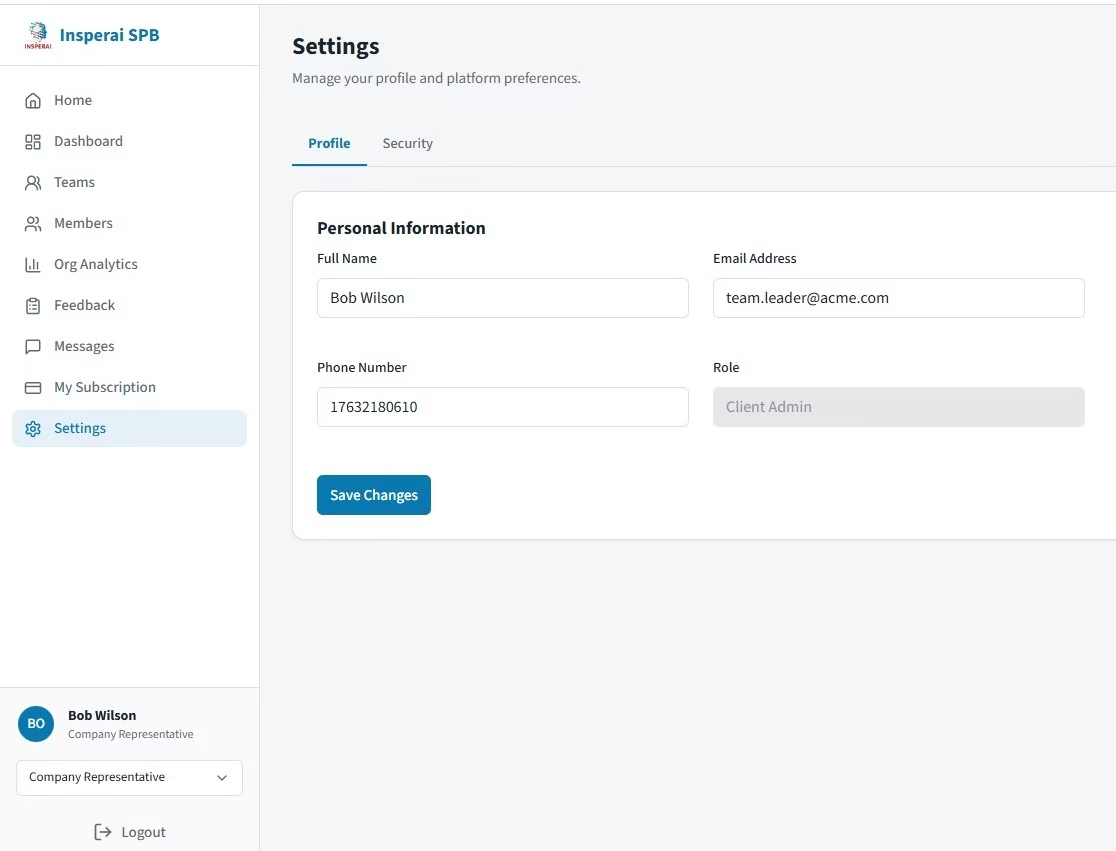
- The user enters or confirms their mobile phone number in their profile.
- The user selects SMS as their preferred MFA method.
- The user is shown clear SMS consent language before enabling SMS MFA.
- The user receives SMS messages only for one-time passcodes, login verification, and account authentication.
- No marketing, promotional, bulk, or unrelated messages are sent through SMS.
- The user may disable SMS MFA or change authentication methods in their account settings.
Exact SMS consent language shown to users
The following consent language is displayed during the SMS MFA setup process before the user enables SMS-based authentication.
SMS Multi-Factor Authentication Consent
By enabling SMS-based Multi-Factor Authentication (MFA), I agree to receive text messages from Insperai for account authentication and security verification purposes. These messages may include one-time passcodes (OTP) and login verification codes only. No marketing or promotional messages will be sent. Message and data rates may apply. I may disable SMS MFA at any time in my account settings.
Types of SMS messages sent
Insperai SMS messages are transactional authentication messages only. They are used to help users securely access their accounts.
Approved SMS use cases
- Multi-Factor Authentication
- One-Time Passcodes
- Login verification
- Account security authentication
Messages not sent by Insperai
- No marketing messages
- No promotional offers
- No bulk messaging campaigns
- No sales or advertising texts
- No unrelated account notifications
Sample SMS message
Example of an authentication text message a user may receive:
Your Insperai verification code is 123456. This code expires in 10 minutes.
Screenshots of the opt-in workflow
The following screenshots show the user-facing SMS MFA opt-in process and consent language.
Screenshots of the opt-in workflow
The following screenshots show the user-facing SMS MFA opt-in process and consent language.
Step 1
User enters phone number in profile.
Step 2
User selects SMS as 2FA/MFA method.
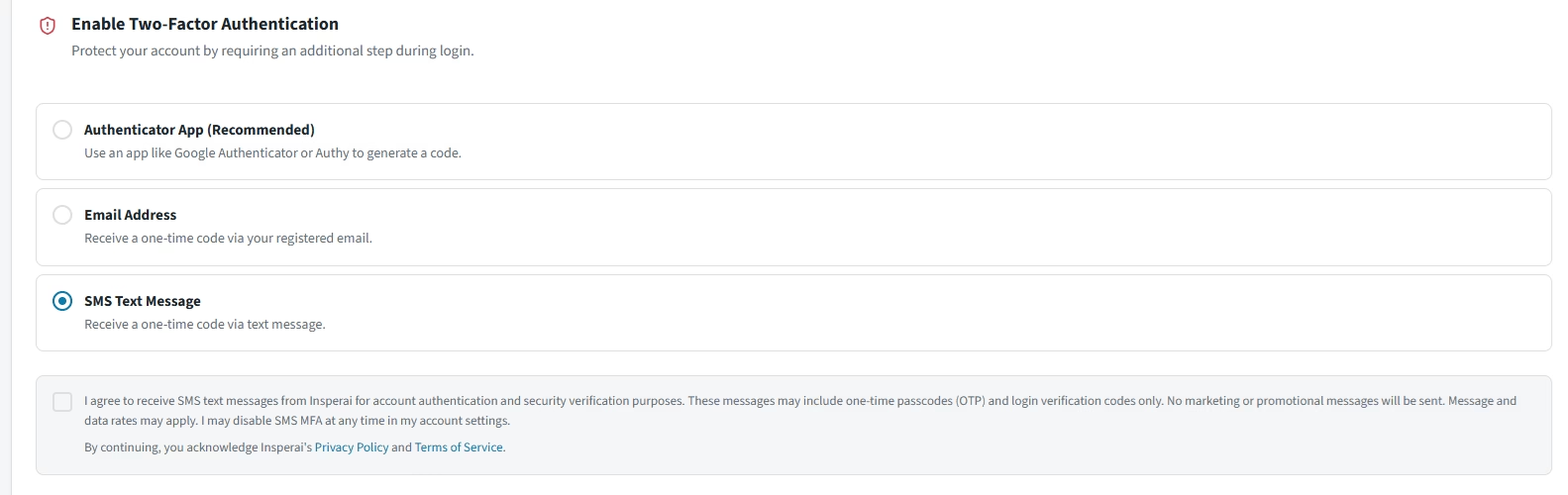
Step 3
User sees and accepts SMS consent language.

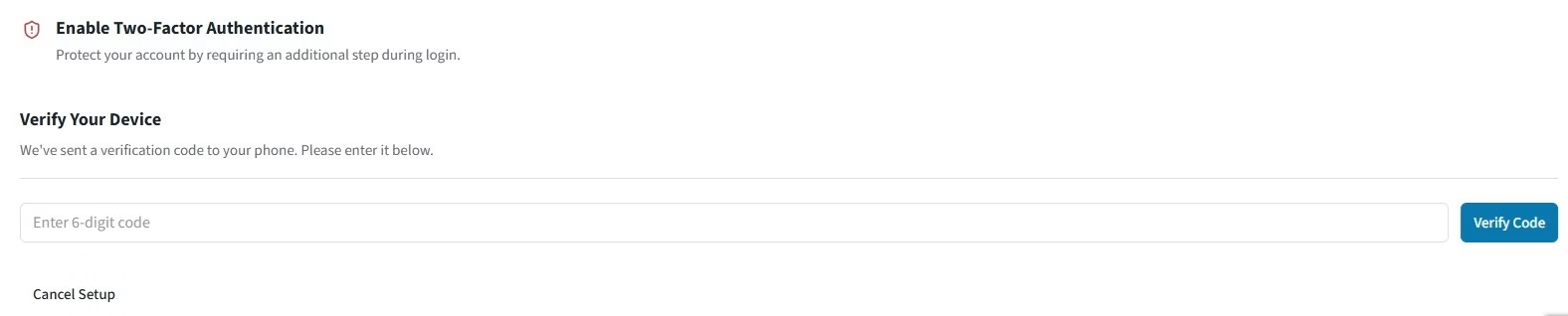
Step 4
User receives a verification text and enters the code on the verification screen.
Privacy and phone number use
Insperai uses phone numbers only for account authentication and security verification when a user explicitly enables SMS MFA. Phone numbers are not sold, shared, rented, or used for marketing text messages.
- SMS consent is collected separately from acceptance of the Privacy Policy or Terms & Conditions.
- Users must actively choose SMS MFA before receiving authentication text messages.
- Users can disable SMS MFA or change their authentication method in account settings.
- SMS messages are limited to security-related OTP and account authentication purposes.